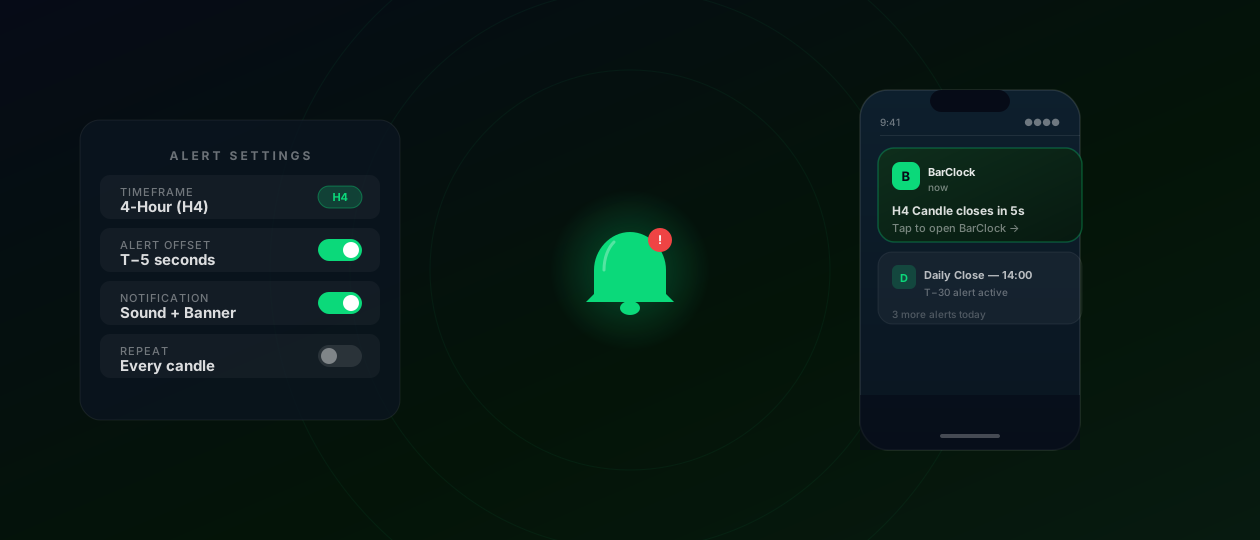
BarClock ships with sensible defaults, but the traders who get the most from it aren’t using defaults. The alert offset, notification type, and timeframe selection you configure on day one should reflect how you actually trade — and most trading styles call for a different setup than the one the app starts with.
Here’s how to think through each setting.
Alert Offsets: When Do You Need the Warning?
The alert offset is how far before the candle close BarClock fires a notification. The built-in options are T−5, T−10, and T−30 seconds, plus a custom offset for anything else.
The right offset depends on what you need to do before the close:
T−5 or T−10 seconds works if you’re watching the chart actively and just need a final confirmation trigger — a signal to shift from analysis to execution. Scalpers and active intraday traders who are already positioned and just want a close-confirmation nudge use these short offsets.
T−30 seconds gives you time to look at the developing close, assess whether a pattern is forming as you expected, and make a final decision before the bar locks in. This is the most common offset for H1 and H4 traders who use the close as a trade entry or exit signal.
Custom offset (minutes) is the right choice for traders who want lead time for review rather than just an execution cue. A T−5-minute alert on H4 or D1 gives you enough runway to examine the forming bar, check your trade plan, and decide whether to act before or after the close. Swing traders who want to review open positions before the daily close typically use a 5–15 minute offset.
Notification Types: Match the Market Environment
BarClock supports sound alerts, vibration, haptic ticks, screen flash, and voice countdown. The right choice depends entirely on your trading environment.
Sound + vibration is the default and works well for home office setups where you want an unmissable alert while doing other work. If you’re away from the chart, sound gets your attention; vibration adds a backup.
Haptic ticks — a series of physical pulses counting down into the close — are the least disruptive option for offices or shared spaces. The countdown is felt, not heard, and doesn’t require you to look at the phone. Some traders find this the most natural interface once they’re used to it: you feel the close arriving rather than being interrupted by it.
Screen flash is useful as a secondary cue when the phone is face-down on a desk. Combine it with vibration for a silent but visible alert.
Voice countdown is designed for traders who can’t glance at a screen — listening to audio, on a call, or simply not looking at their phone. The verbal cue (“H4 close in 30 seconds”) gives full context without any visual attention.
Screen-off alerts are enabled by default in BarClock. The timer continues and all notification types fire regardless of whether the phone is locked. This means you can set the phone down, monitor nothing, and trust the alert to reach you.
Timeframe Selection: Track What You Trade
The free tier tracks one timeframe with one alert. The Pro tier removes both limits. Here’s how to decide what to track:
Single-timeframe traders: track only your primary timeframe. Adding more timeframes than you act on is clutter, not information. If you trade H4, track H4 and nothing else.
Multi-timeframe analysis: track two timeframes — your entry timeframe and the one above it. If you enter on H1 and use H4 for direction, track both. The context from the higher timeframe close adds information; adding M15 below your entry timeframe usually doesn’t.
Session-based traders: track M15 or M30 during your active session window, H4 for session boundary awareness. Many traders turn off lower timeframe tracking during periods when they don’t trade (overnight, off-session hours) and re-enable it at the start of their active window.
The Setup for Common Trading Styles
Forex scalper (M5/M15): T−10 second sound + vibration alert on your entry timeframe. No need to track H4 actively — H4 context is background research, not real-time signal.
Intraday trend trader (H1): T−30 second haptic + sound on H1. Optional T−5-minute soft alert to review the forming bar before the decision window.
H4 swing trader: T−5-minute screen flash for chart review, T−30-second sound for execution. GMT offset verified against broker. H4 only — ignore shorter timeframes during the trade.
Daily bar watcher: T−15-minute voice or sound alert for position review. D1 only during most of the day; add H4 during the last few hours of the session if actively managing.
One Thing to Test Before You Need It
Before a live trade, verify that your BarClock alert fires at the right moment by watching a candle close in real time. Set up the alert, keep the chart open, and confirm that the notification arrives when — and only when — a new candle opens on your platform.
If there’s a mismatch, the GMT offset is almost always the cause. Fix it before the next session, not during one.
Once you’ve confirmed alignment and chosen your offsets, the setup pays for itself the first time you’re 90 seconds from a meaningful H4 close and your phone tells you it’s coming — while your full attention stays on the chart.