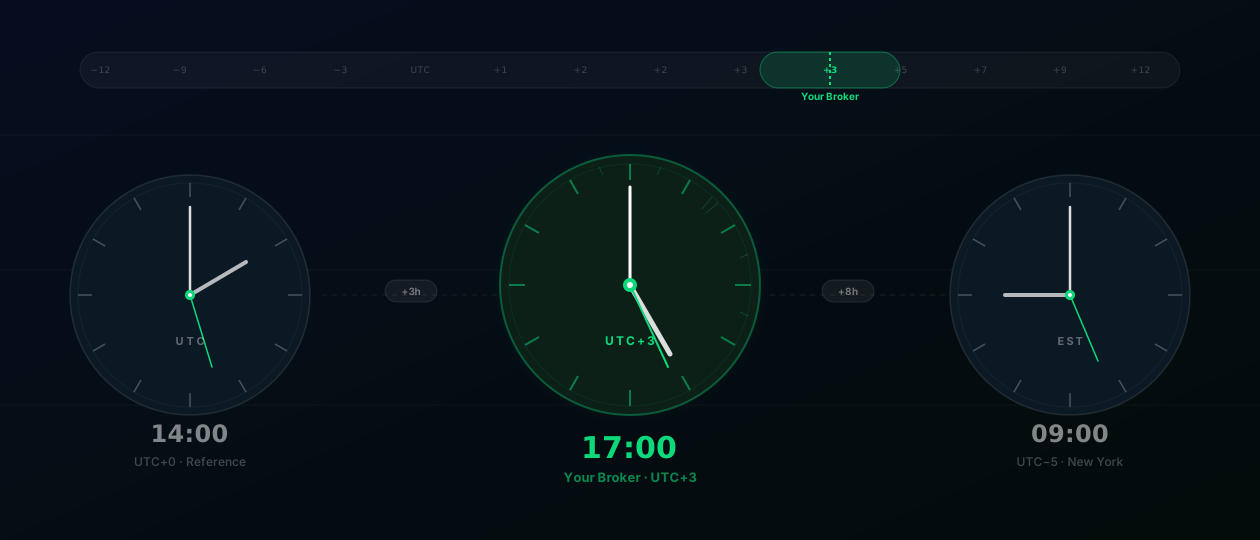
The most common support question we get isn’t about alerts or timeframes — it’s about H4 candles that don’t match. The BarClock timer says a new 4-hour candle just opened. The chart shows something different. The timer fires while a candle is still clearly mid-formation.
The cause is almost always a misconfigured GMT offset. Here’s why it happens and how to fix it.
Why Brokers Have Different GMT Offsets
Forex and CFD brokers operate their own servers, and those servers run on a clock. That clock determines when daily and H4 candles open and close on your chart. The standard reference point is the New York close — most brokers are configured so that the daily candle closes at 5pm New York time, which corresponds to midnight server time.
The problem: “midnight server time” translates to different UTC offsets depending on where the broker’s servers are based and whether they observe daylight saving time. A broker on GMT+2 (standard Eastern European time) will draw its daily candle close at 22:00 UTC in winter, 21:00 UTC in summer.
H4 candles inherit the same boundary. An H4 starting at midnight server time produces close events at 04:00, 08:00, 12:00, 16:00, 20:00, and 00:00 server time. Shift the server’s UTC offset by one hour and every one of those boundaries shifts by an hour.
This means two traders on different brokers, trading the same pair, looking at nominally the same “H4 chart,” are watching candles that close at different clock times.
How to Find Your Broker’s GMT Offset
The most reliable method is to read the server clock directly from your trading platform:
- Open your charting platform (MT4, MT5, cTrader, or your broker’s web platform).
- Find the server time display — most platforms show it in the top toolbar or in the platform status bar. It’s usually labeled “Server Time” or shows in the clock in the interface.
- Compare the displayed server time to your current UTC time. The difference is your broker’s GMT offset.
The offset can range from GMT+0 to GMT+3, with GMT+2 (and GMT+3 during summer daylight saving) being the most common among major retail forex brokers. Crypto exchanges often run at GMT+0.
Setting BarClock to Match Your Broker
In BarClock, the GMT offset is a one-time setup step. Once configured, the app calculates all H4 and D1 candle boundaries relative to that offset.
Open BarClock → Settings → Broker GMT. Enter the offset you found above as a whole number (e.g. +2, +3, 0). The app will immediately update all displayed candle countdowns.
To verify the setting is correct:
- Watch the H4 countdown reach zero on BarClock.
- Confirm a new H4 candle opens on your chart at the same moment.
- If they align, the setting is correct.
If they’re off by a fixed number of hours, adjust the offset in the same direction. If the chart candle opens later than the timer fires, increase the offset. If the chart candle opens earlier, decrease it.
Daylight Saving Time
This is where most traders who initially got the setting right run into problems later. Many retail forex brokers shift their server time by one hour during daylight saving transitions — usually following US DST in spring and autumn. When this happens, your previously correct GMT offset is suddenly wrong by an hour.
Common broker patterns:
- GMT+2 in winter, GMT+3 in summer — the most common setup for brokers on Eastern European Time
- GMT+0 year-round — some brokers, and most crypto exchanges, don’t observe DST
- GMT+2 year-round — some brokers maintain a fixed offset regardless of DST
The safest approach: each time a major DST transition occurs (March/April and October/November), spend 30 seconds verifying your broker’s server time against UTC and update BarClock if needed.
A Correctly Aligned Timer Changes Everything
Once the offset is set correctly, the H4 and D1 countdowns in BarClock are exact. The 30-second alert fires 30 seconds before the chart candle closes. The new-candle notification fires when the next bar opens. The math is pure: no price feed, no API dependency, nothing to go wrong except the one input you control.
Set the offset once. Verify it once. Update it when DST changes. After that, the timer is simply right.